Pixel Studio Pro, from blank grid to exported GIF
Pixel Studio Pro is a free, browser-based pixel art and animation editor — no install, no account, no backend. It runs entirely on-device, saves itself as you work, and installs as an offline app on desktop or mobile. This handbook walks through every panel, tool and export path, with short tutorials you can follow along with in a second tab.
The interface, at a glance
Everything lives in one window: a fixed header for project and export actions, a scrollable left sidebar for tools and settings, the canvas in the middle, and a timeline along the bottom for frame-by-frame animation.
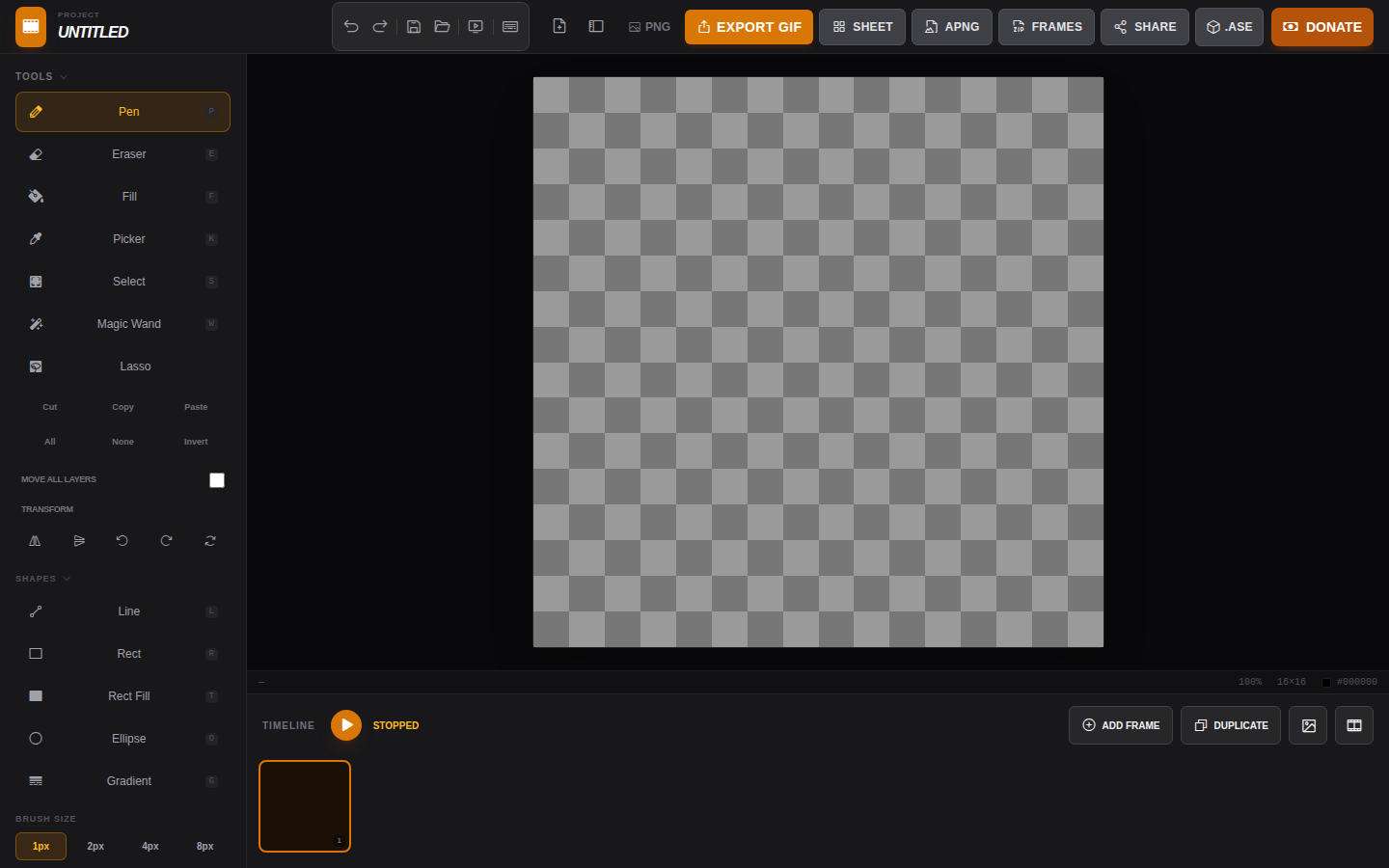
Header (top)
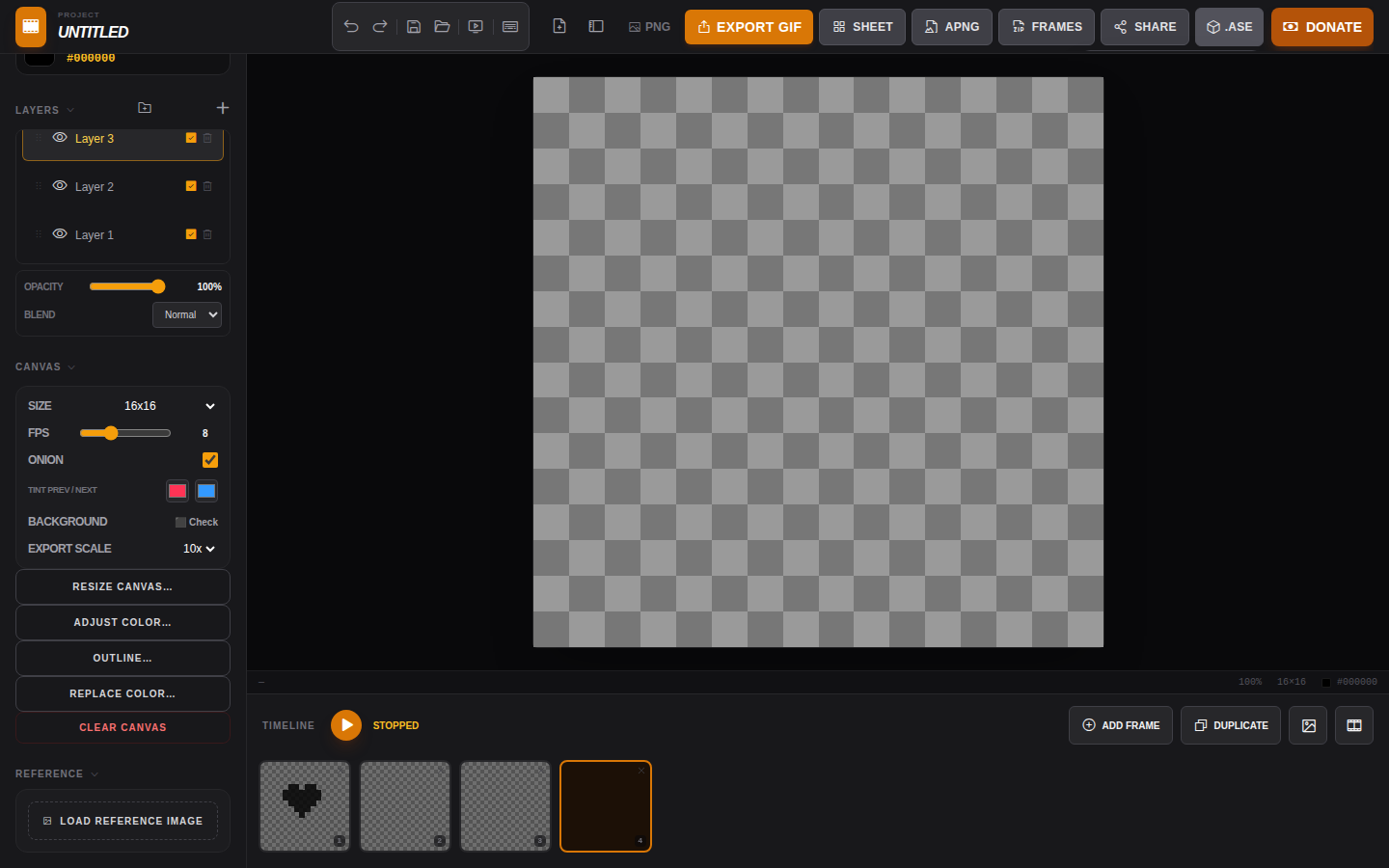
Project name, Undo/Redo, New Project, Save/Load, and the export cluster — PNG, Export GIF, Sheet, APNG, Frames (zip), Share, and the .ASE import/export menu. All covered in Exporting.
Sidebar (left, scrolls independently)
Stacked, collapsible sections: Tools, selection actions and transforms, Shapes, brush size and Symmetry, Palette, Layers, Canvas settings, and Reference image. Click a section header to collapse it if you need more room.
Canvas (center)
Your drawing surface, checkered where transparent. Scroll to zoom toward the cursor, middle-click drag to pan, double-click to reset both. The coordinate readout and zoom level sit in the thin status bar just below the canvas.
Timeline (bottom)
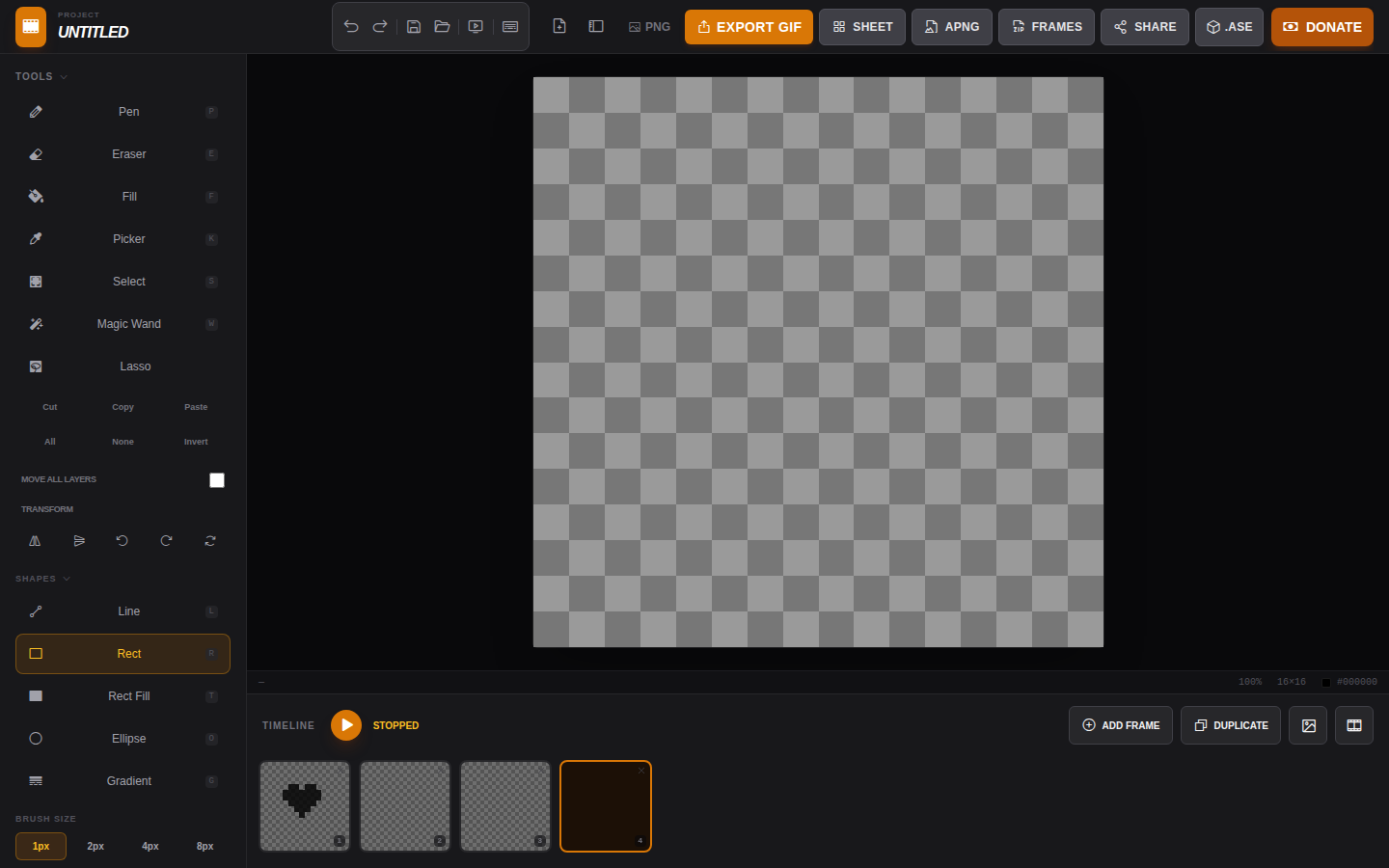
One thumbnail per frame. Click a thumbnail to jump to it, hit the play button to preview the loop at the project's FPS, and use Add/Duplicate/Import/Tween on the right. Full details in Frames & animation.
Your first sprite
The fastest way to get oriented is to draw something. This takes about two minutes.
- Confirm the Pen tool is selected in the Tools list (it's the default) — shortcut P.
- Open the Palette section and click a swatch, or click the Active Color chip to pick any hex value with the color wheel.
- Pick a Brush Size (1px is standard for fine pixel work) and click or drag across the canvas to place pixels.
- Made a mistake? Switch to Eraser (E) to remove pixels, or press Ctrl+Z to undo — undo history goes back the full length of your session.
- Try Fill (F) on an enclosed outline to flood-fill it in one click, and Picker (K) to sample a color already on the canvas.
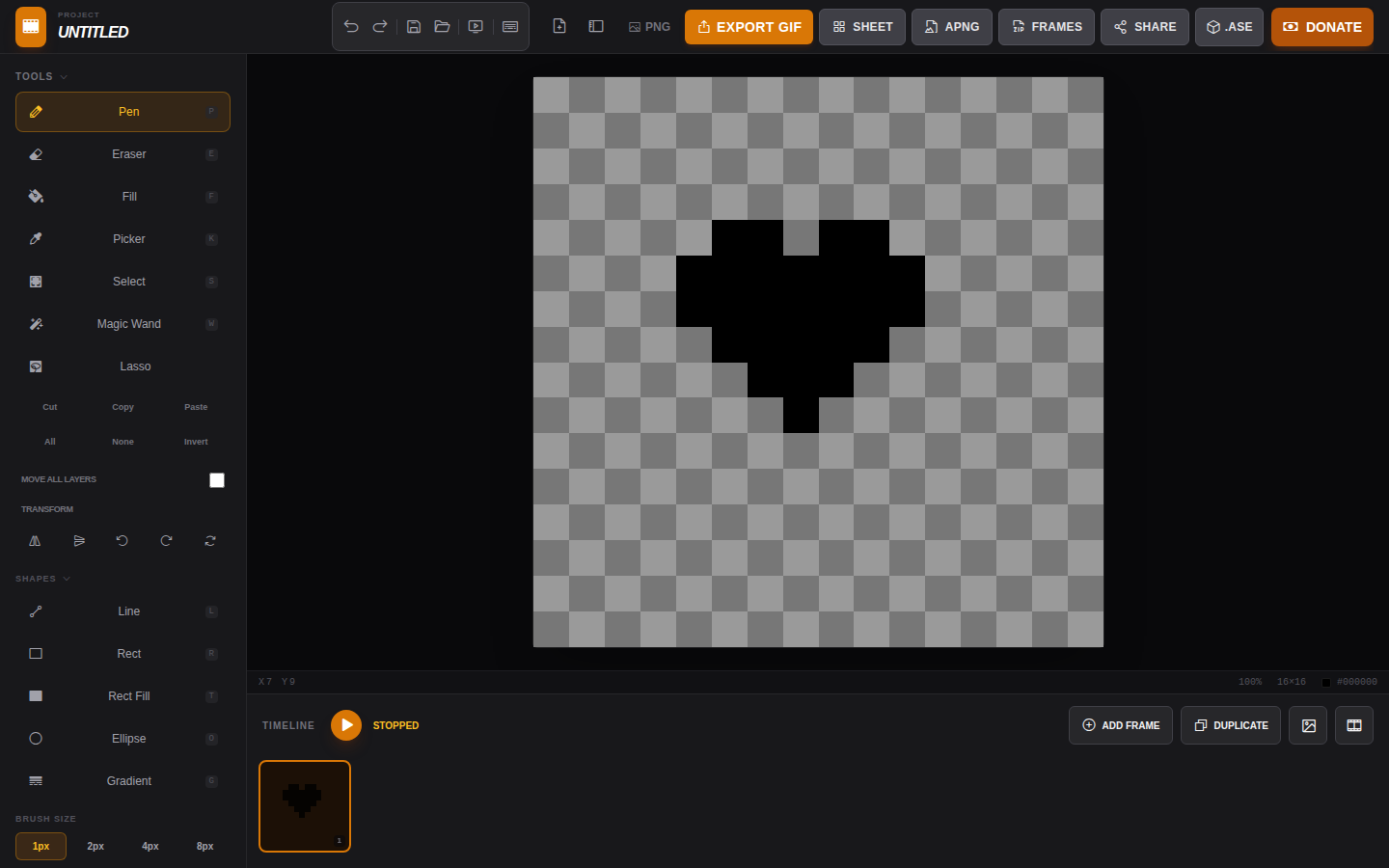
Tools & brushes
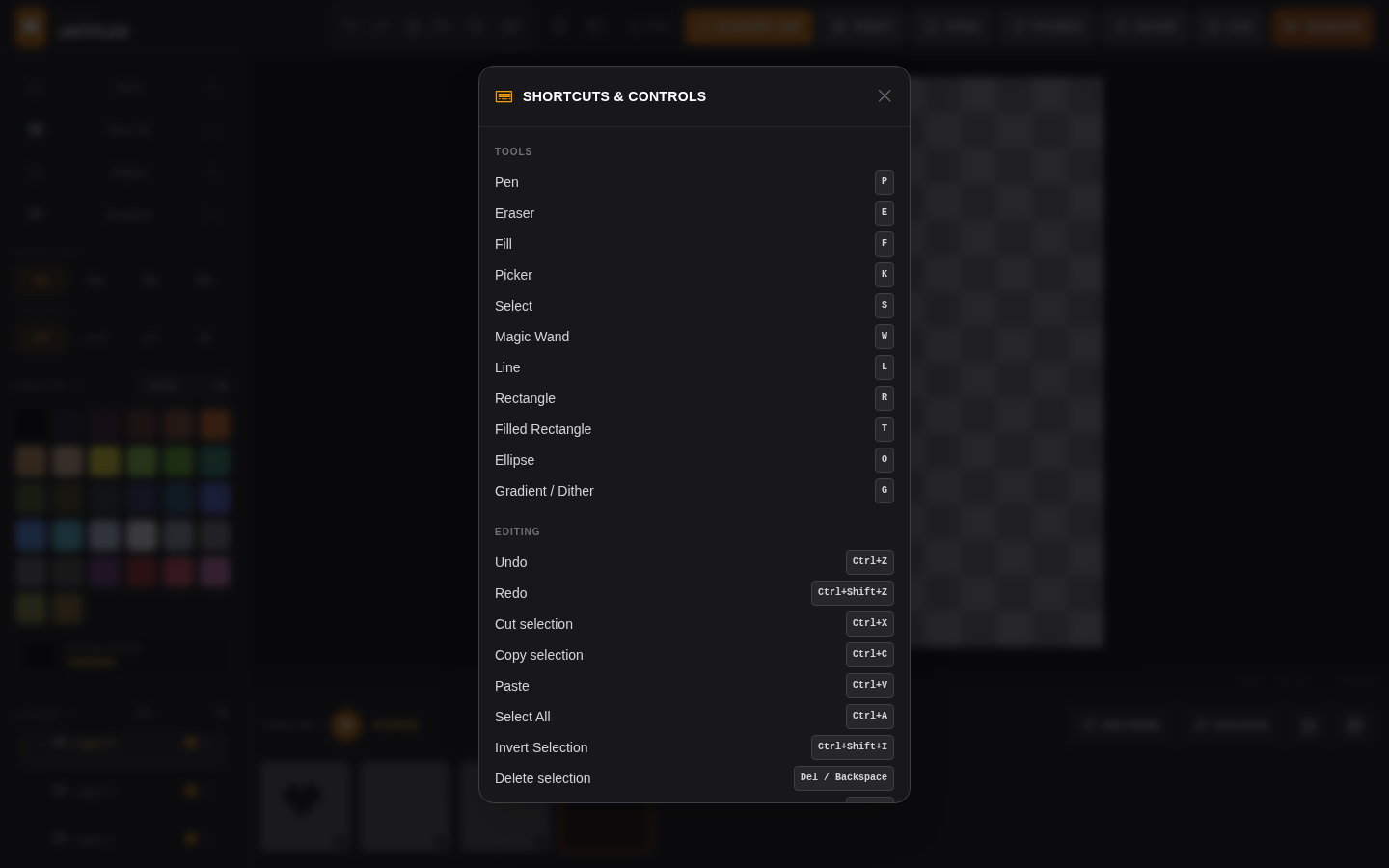
All drawing and shape tools live in the sidebar's Tools and Shapes sections, each with a one-key shortcut.
Freehand pixels at the current brush size and color.
Clears pixels back to transparent.
Flood-fills a contiguous region of matching color.
Samples a color from any visible pixel into Active Color.
Rectangular marquee — drag to lift and move pixels.
Selects contiguous same-color pixels, like Fill but non-destructive.
Freehand selection outline for irregular shapes.
Drag to draw a straight, anti-alias-free pixel line.
Drag to draw a rectangle outline.
Drag to draw a solid filled rectangle.
Drag to draw a circle or oval outline.
Drag an axis for a smooth or dithered two-color fill across already-opaque pixels.
Brush size & symmetry
Brush size steps through 1px / 2px / 4px / 8px. Symmetry mirrors every stroke across the canvas — Off, X (left/right), Y (top/bottom), or both at once — indispensable for characters, icons, and tileable patterns.
Color & palettes
The Palette section holds your working set of colors, with a dropdown of built-in retro palettes and full support for building your own.
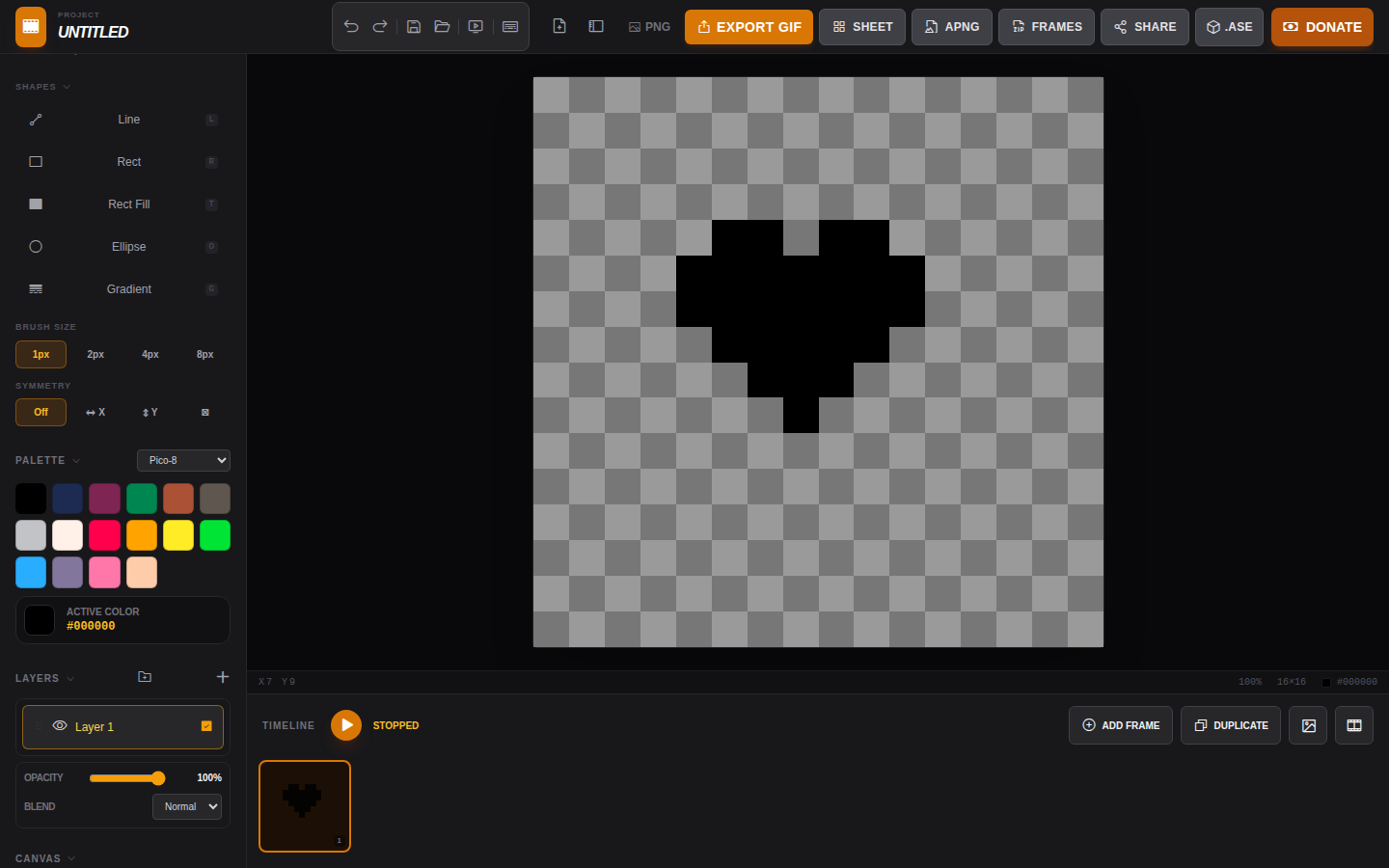
Built-in palettes:
Pick Custom to build your own: add the Active Color as a new swatch, edit or remove existing ones, or extract a palette straight out of an image you upload. A separate Recent row remembers colors you've used lately regardless of which palette is loaded.
Whole-image color tools
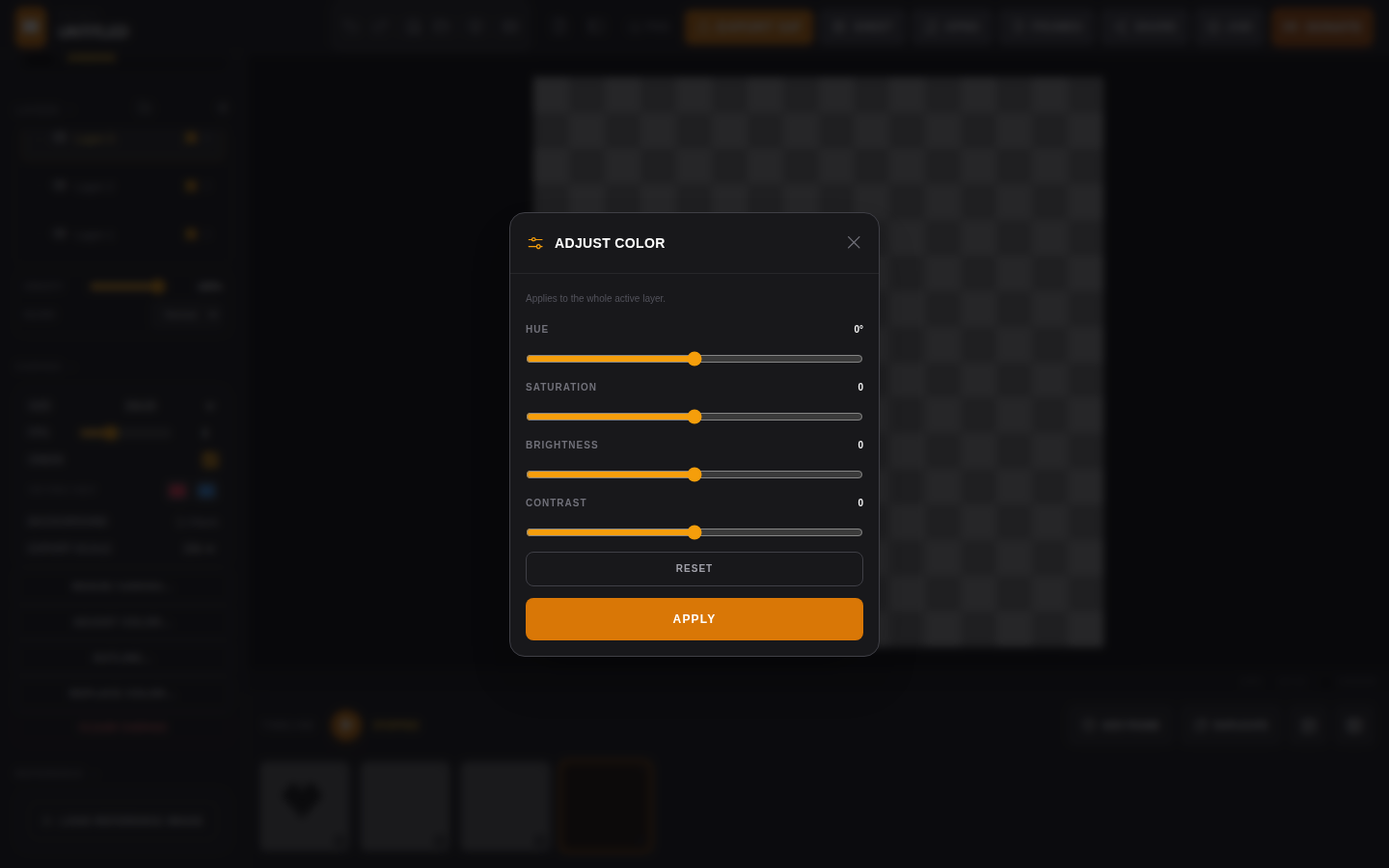
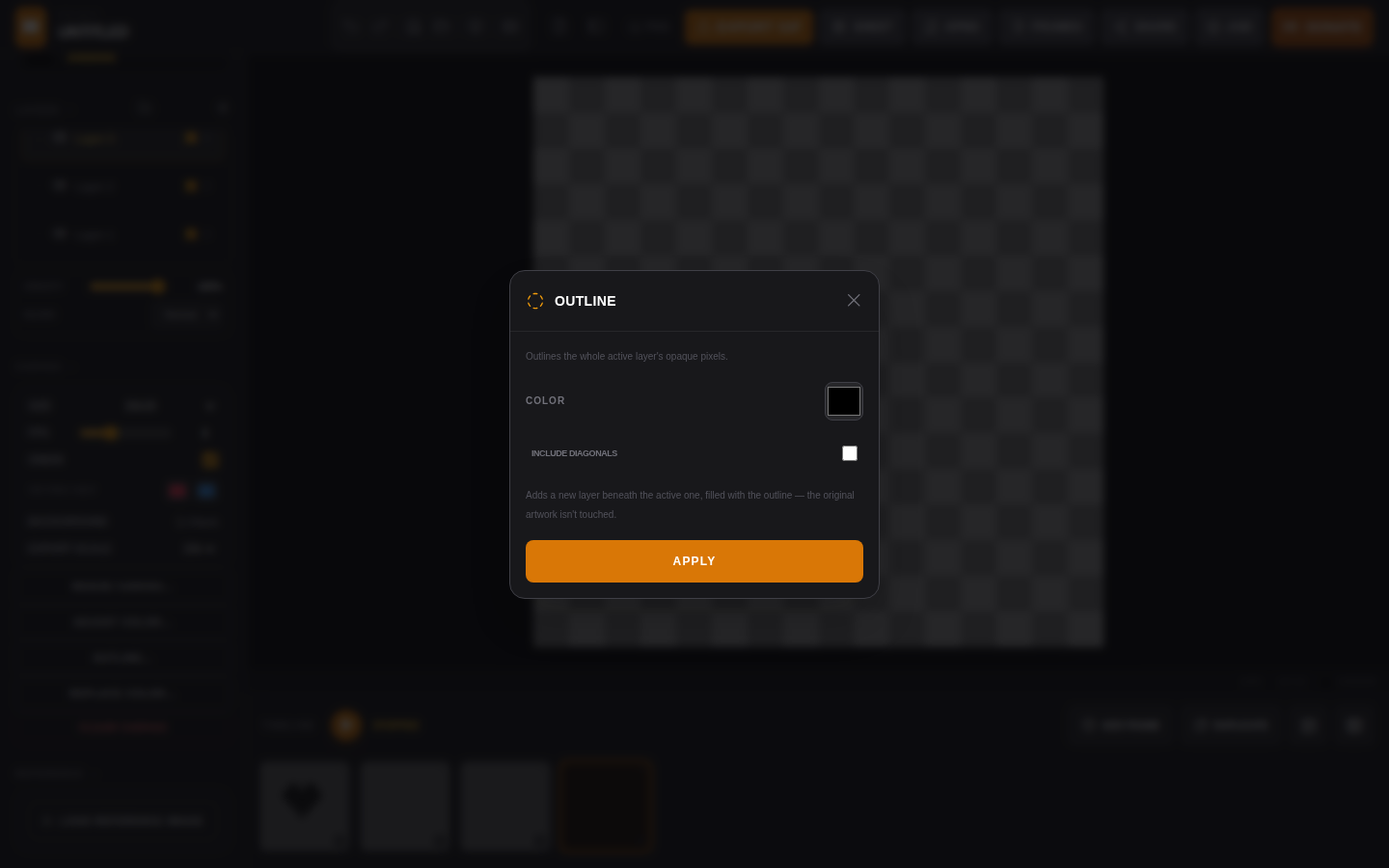
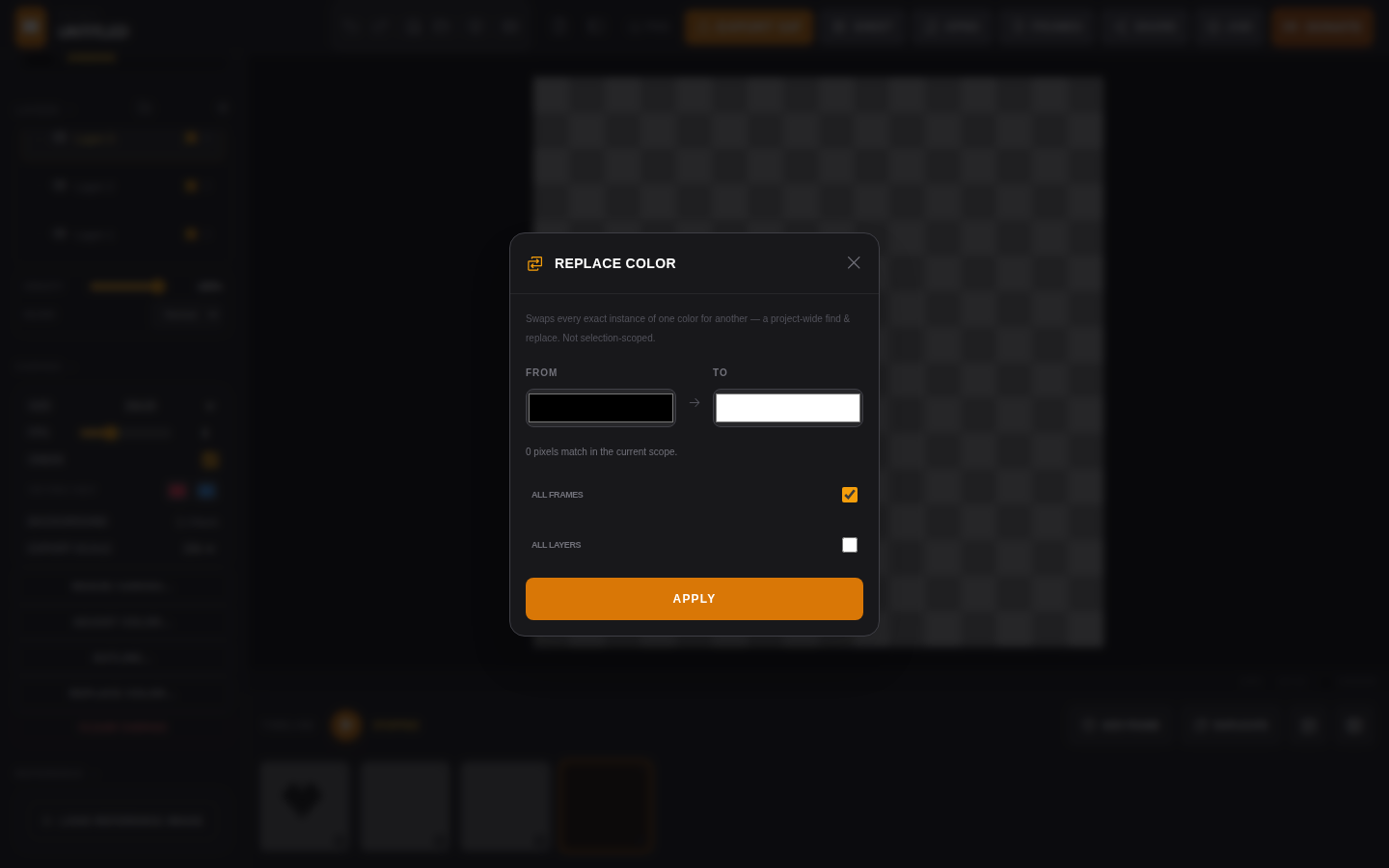
Three project-wide tools live under the Canvas section:
Selections & transforms
Three ways to select pixels, and a shared set of actions once something's selected.
- Select — drag a rectangle. Drag inside it again to lift and move the pixels underneath.
- Magic Wand — click to grab every contiguous pixel matching that color.
- Lasso — drag a freehand outline for irregular selections.
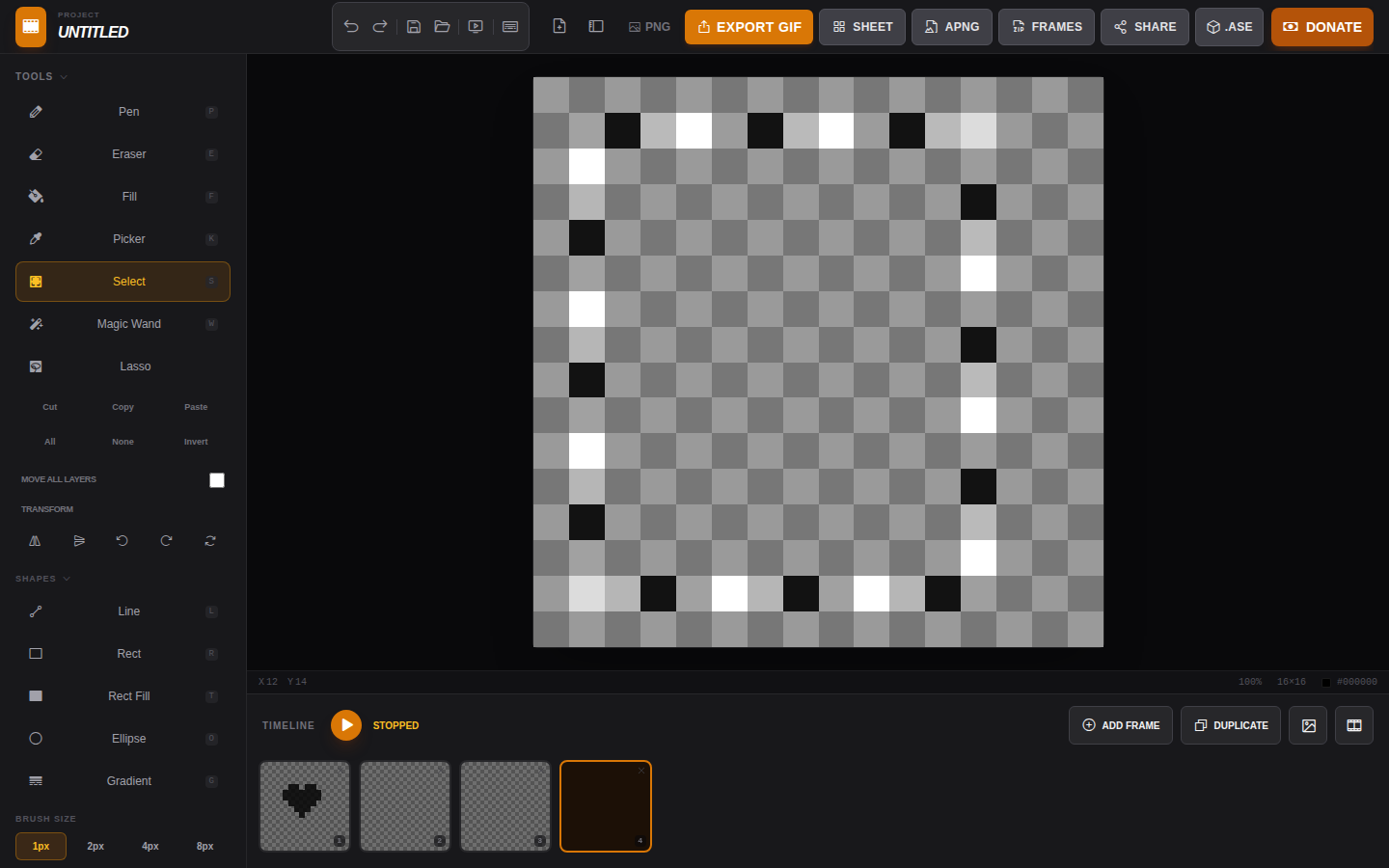
With something selected: Cut / Copy / Paste, Select All / Deselect / Invert, nudge with the arrow keys (hold Shift for 10px jumps), and Flip or Rotate (90° either way, or 180°) — each transform applies to the selection if you have one, or the whole active layer if you don't. Toggle Move All Layers before dragging a selection to shift every layer in the stack together, useful for repositioning a whole multi-layer composition at once.
Layers & groups
Layers stack per-frame, same as in any image editor — but in an animation, every frame carries its own copy of every layer.
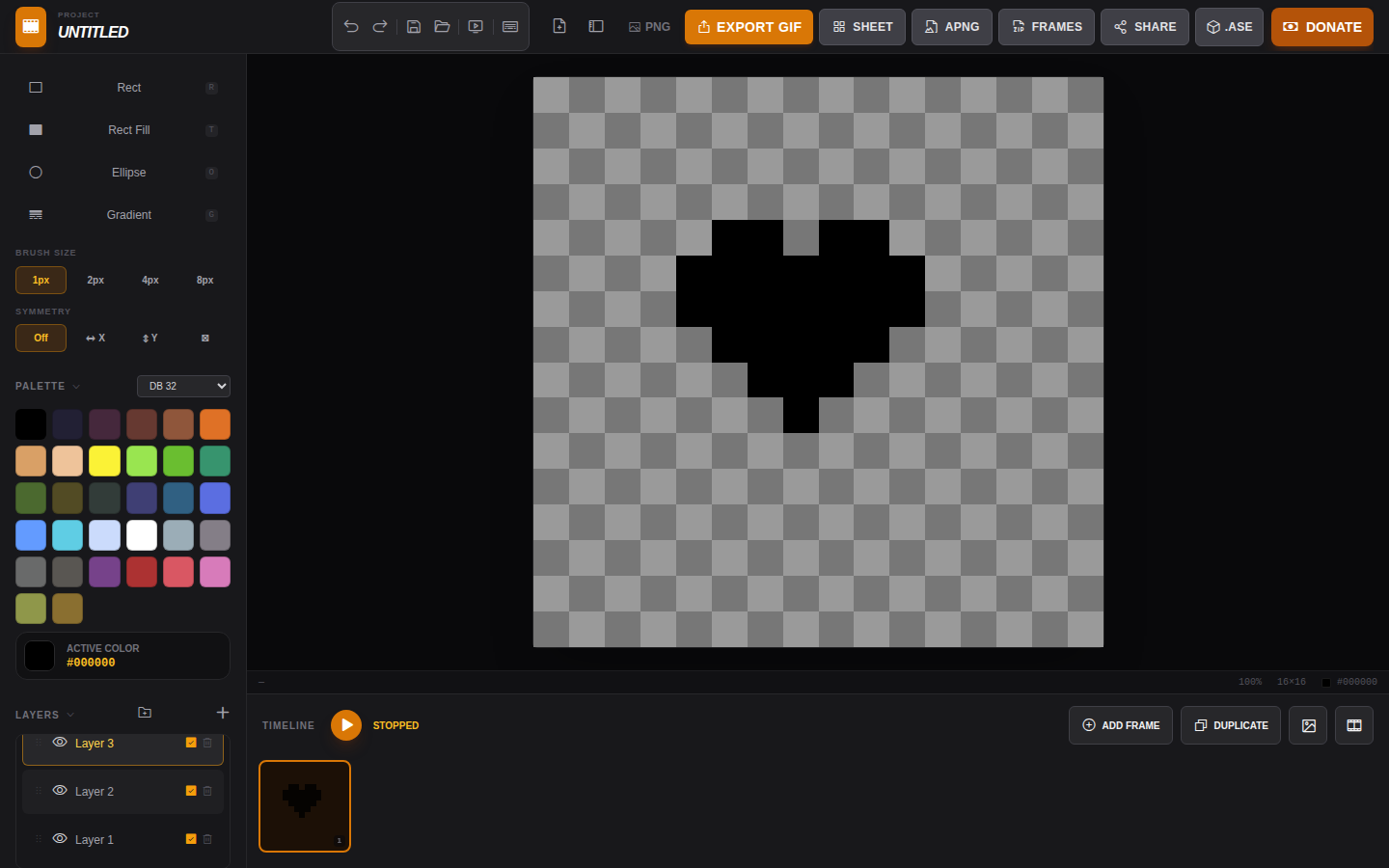
- Click the + next to Layers to add a new, empty layer above the current one.
- Double-click a layer's name to rename it — "Outline", "Base", "Shading" reads better than "Layer 3" once you have five of them.
- Drag a layer by its handle to reorder the stack; click the eye icon to hide it without deleting it.
- Lower a layer's Opacity for a soft shadow or glow, or change Blend from Normal to see it interact with the layers beneath.
- Click the folder icon to gather related layers into a collapsible group — handy once a character has a dozen parts.
Frames & animation
The timeline along the bottom is where a static sprite becomes a loop.

- Draw your first pose on frame 1.
- Click Add Frame for a blank frame, or Duplicate to start the next pose from a copy of the last one — usually faster for walk cycles and small movements.
- Turn on Onion in the Canvas section: the previous frame ghosts through in one tint, the next frame in another, so you can line up movement precisely.
- Set FPS with the slider (1–24) to match the speed you're aiming for.
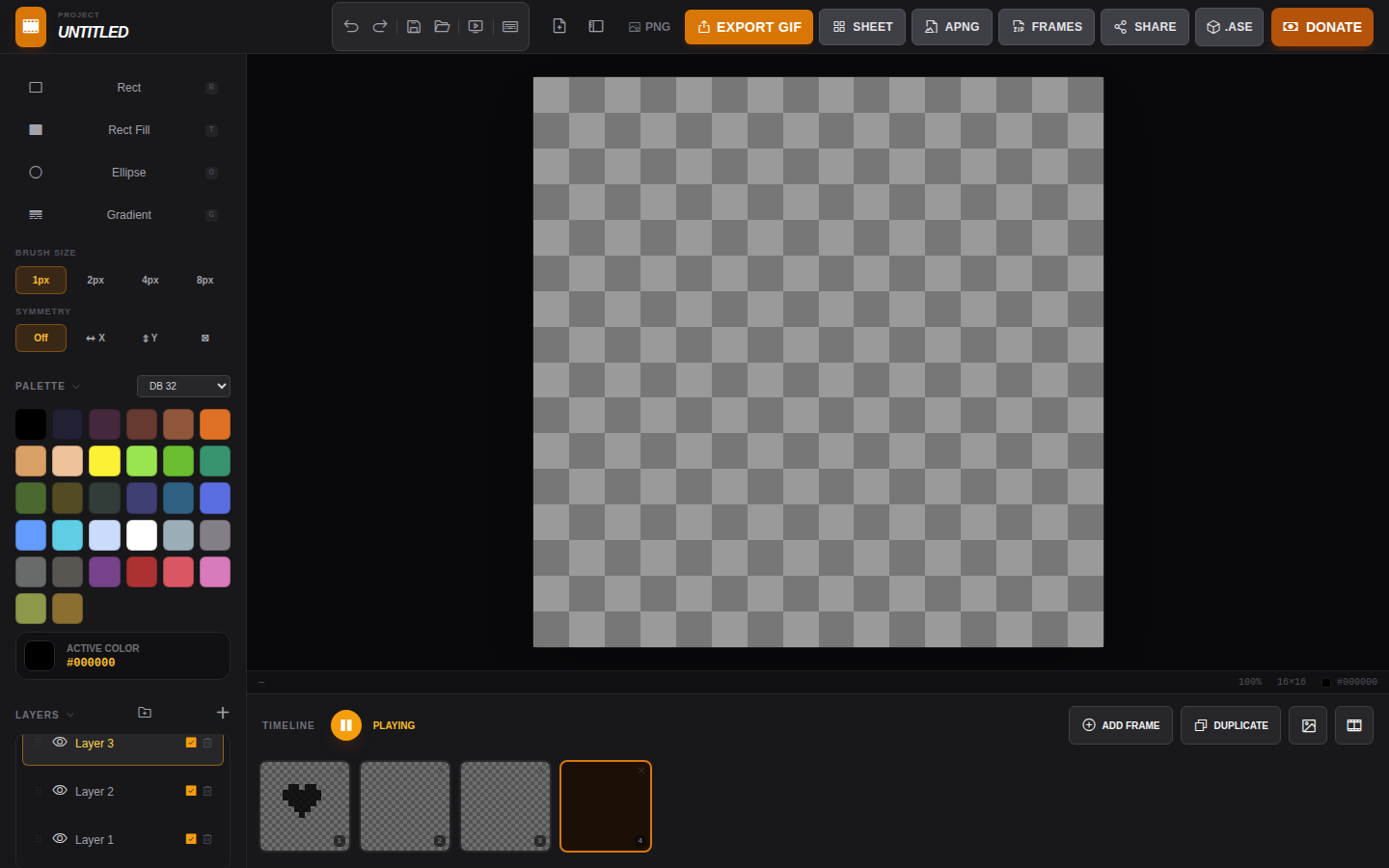
- Hit the play button on the timeline to loop the whole sequence at that FPS.
Tween & hold
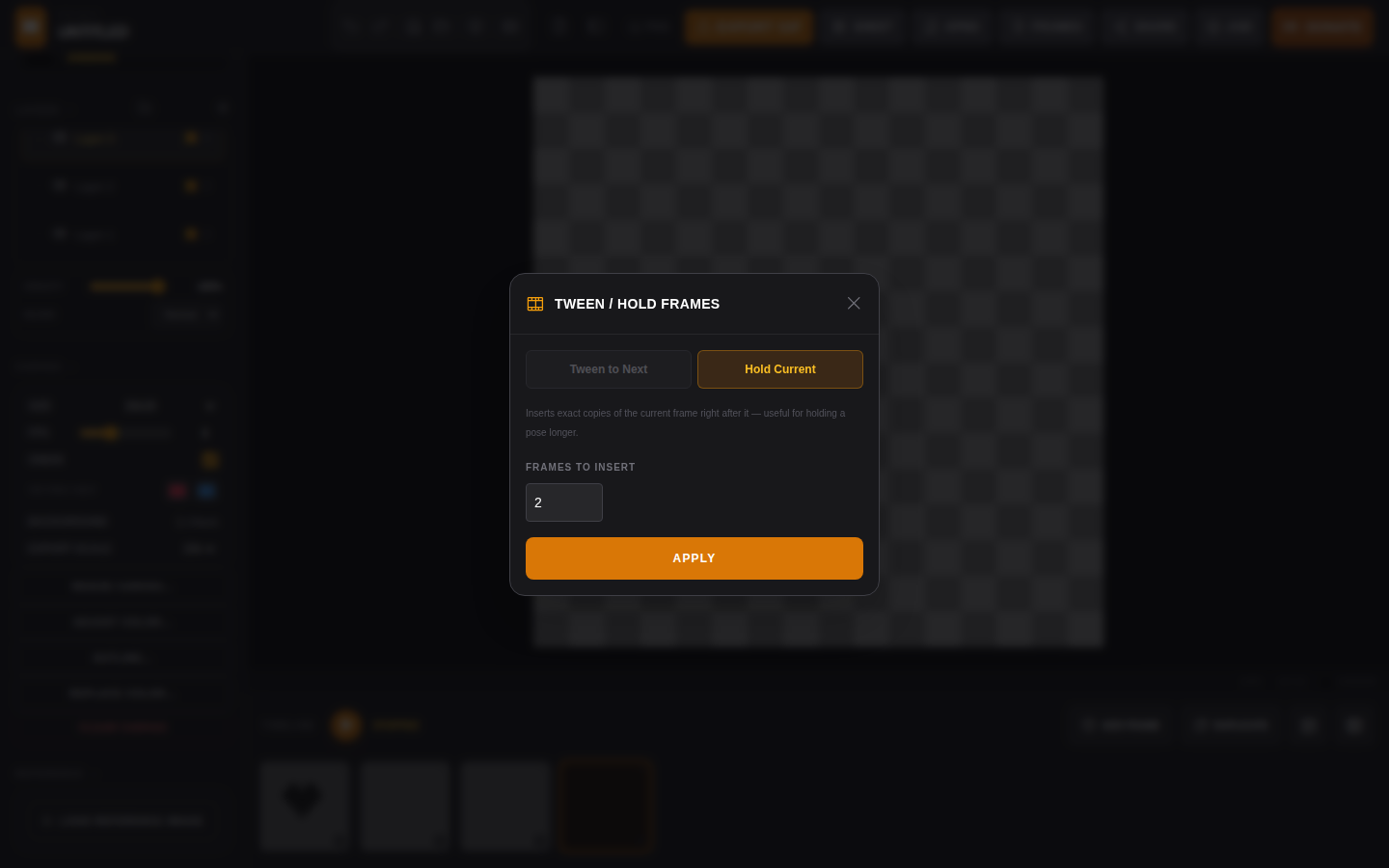
Rather than drawing every in-between frame by hand, use Tween on the timeline:
Canvas & reference art
Canvas-level settings and one-off destructive actions live together under Canvas in the sidebar.
Resizing
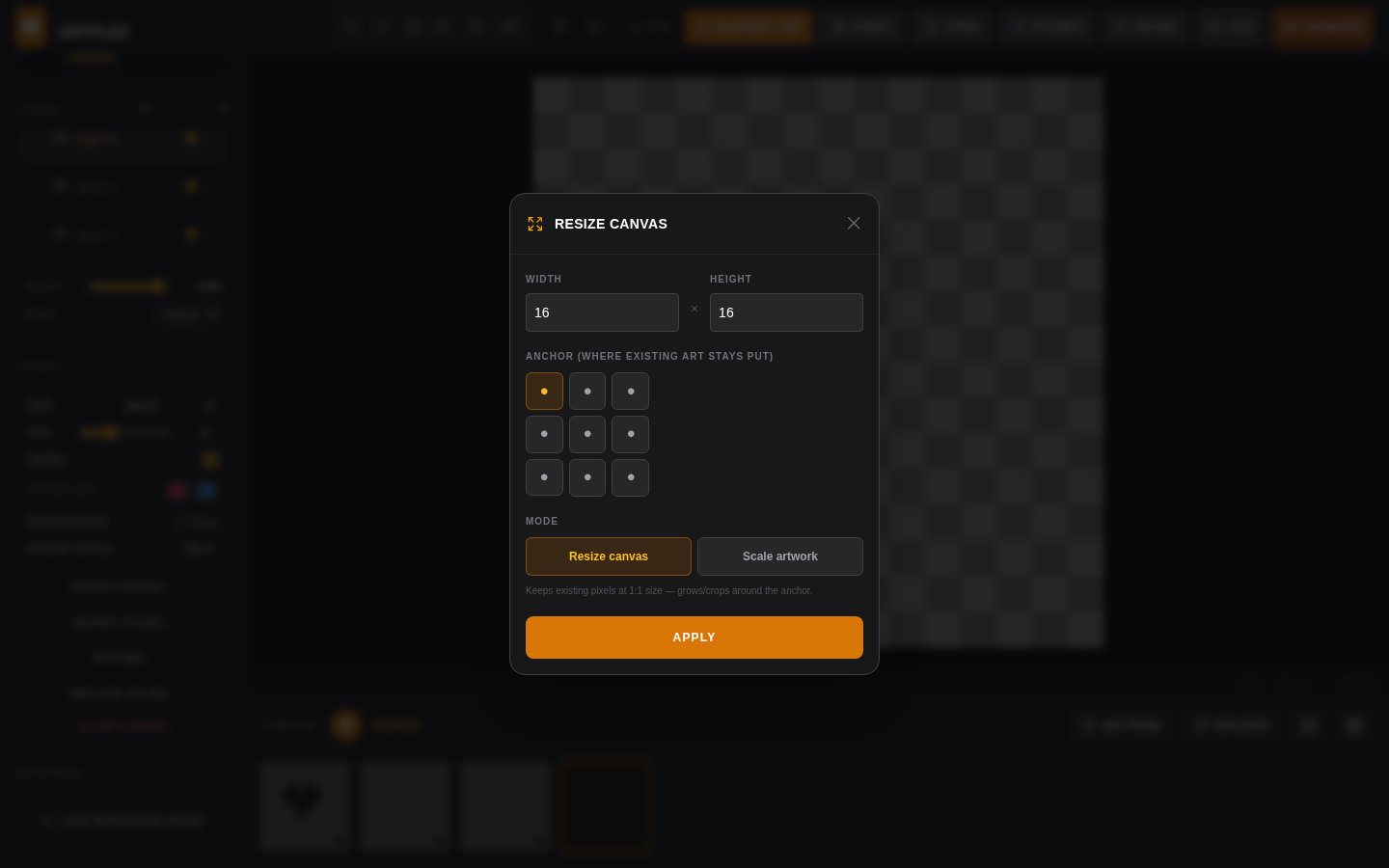
Pick a preset from the Size dropdown (8×8, 16×16, 32×32, 64×64, 128×128, 320×180, 640×360) or open Resize Canvas for exact dimensions and control over where existing art anchors as the canvas grows or shrinks.
Frame & layer limits scale with canvas size
Larger canvases cost more memory per frame, so the maximum frame and layer counts shrink as you size up:
| Canvas size | Max frames | Max layers |
|---|---|---|
| Up to 32×32 | 100 | 16 |
| Up to 64×64 | 60 | 8 |
| Up to 128×128 | 24 | 5 |
| Up to 320×180 | 12 | 4 |
| 640×360 | 8 | 3 |
Reference image
Click Load Reference Image to drop a photo or drawing behind your active layer as a tracing guide. Toggle its visibility with the eye button while you work, or remove it entirely once you've traced what you need — it never exports with your project.
Exporting
Every export button lives in the header, and every export respects the Export Scale multiplier set under Canvas (1x/4x/8x/10x/20x) — a 16×16 sprite at 10x exports as a crisp 160×160 image.
The current frame only, as a single transparent PNG.
The full animation, looping, using the project's FPS.
A sprite sheet — every frame laid out in a single row of one PNG.
Full-color animation with real alpha transparency, no 256-color limit like GIF.
Every frame as its own numbered PNG, bundled into one .zip.
Sends the current frame straight out via the device's native share sheet (mobile).
.ASE in the header opens a small menu for Import .aseprite and Export .aseprite, for moving work between Pixel Studio Pro and Aseprite.
Saving & projects
Pixel Studio Pro has no server and no account — your project lives in the browser and in files you explicitly save.
- Save writes a
.pxlfile — plain JSON with every frame, layer, palette, and name. Load reads one back in. - Autosave mirrors your current project into the browser's local storage as you work; if you return to a closed tab, it offers to restore that autosave.
- Opening a
.pxlor.asepritefile that exceeds the current resolution's frame/layer cap truncates to the first N and tells you, rather than refusing to open it.
.pxl file whenever you hit a milestone you don't want to lose.Install as an app
Pixel Studio Pro is an installable Progressive Web App. Most browsers offer an "Install" or "Add to Home Screen" option once you've loaded it — after that first load, it keeps working fully offline, launches in its own window, and behaves like a native app.
Mobile & touch
The whole app is responsive — the sidebar collapses into a compact top toolbar and bottom sheets on narrow screens.
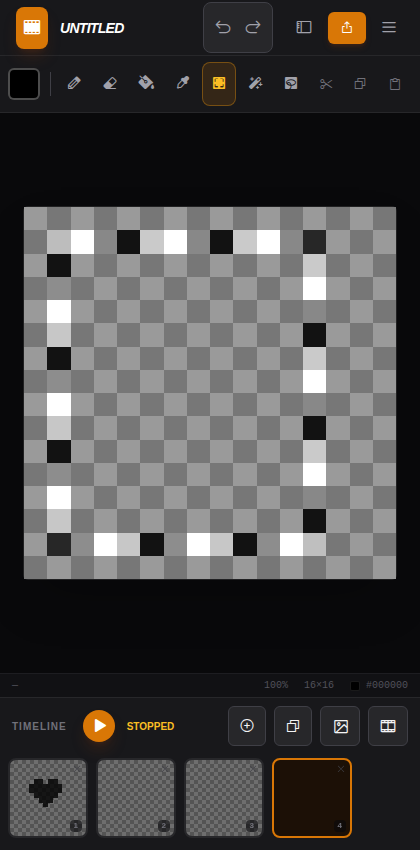
Touch gestures: drag on the canvas to draw with whatever tool is active, pinch to zoom and pan, and double-tap to reset the view back to fit.
Keyboard shortcuts
The same reference is available in-app any time via the keyboard icon in the header.
Tips & troubleshooting
.pxl file before switching machines or clearing site data.